Our first source file
This chapter is dedicated to our first experiment, and will explain the basic structure of a ConTeXt document, as well as the best strategies for dealing with potential errors.
Preparing the experiment: essential tools
To write and compile a first source file, we need the following tools to be installed on our system.
- A text editor for writing our test file. There are many text editors around and it is difficult to think of an operating system that does not already have one installed. We can use any of them: there are simple ones, more complex ones, more powerful ones, some you pay for, some free (as in gratis), some free (as in libre), some which specialise in TeX systems, others of a general nature, etc. If we are used to handling a particular editor, we would do better to continue working with it; if we are not used to working with one up to this point, my advice, initially, is to find a simple editor so as not to add the task of learning how to use a text editor to the difficulty of learning ConTeXt. Although it is true that often the most difficult programs to learn are the ones that are the most powerful.
I have written this text with GNU Emacs, which is one of the most powerful and versatile general purpose editors in existence; it is true that it has its peculiarities and also its detractors, but in general there are more “Emacs-lovers” than “Emacs-haters”. There is a GNU Emacs extension called AucTeX for working with TeX files or one of its derivatives, which provides the editor with some very interesting additional utilities, although AucTeX is in general better prepared to work with LaTeX than with ConTeXt files. GNU Emacs in combination with AucTeX could be a good option if we don't know which editor to choose; both are software libre programs, and so there are versions of them for all operating systems. In fact, saying that GNU Emacs is software libre is an understatement, since this program embodies better than any other the spirit of what free software is and means. In the end, its main developer was Richard Stallman founder and ideologue of the GNU project and the Free Software Foundation.
As well as GNU Emacs + AucTeX, other good options, if you do not know which to choose, are Scite and TexWorks. The former, even though a general purpose editor not specifically designed for working with ConTeXt files, is easily customised and, as it is the editor that ConTeXt developers generally use, ConTeXt Standalone contains the configuration files for this editor, written by Hans Hagen himself. TexWorks, on the other hand, is a fast text editor and specialises in handling TeX files and those of its derivative languages. It is quite simple to configure it for working with ConTeXt and ConTeXt Standalone also envisages its configuration.
Whatever the editor, the one thing we must not use as a text editor is a word processor like, for example, OpenOffice Writer or Microsoft Word. These programs, also too slow and heavy in my opinion can, if it is expressly indicated, save a file as ‘text only (txt)’, but they were not designed for this and we will most likely end up saving our file in some binary format that is incompatible with ConTeXt.
- A ConTeXt distribution for processing our test file. If there is already a TeX (or LaTeX) installation on our system, it is possible that there is already a version of ConTeXt installed. To test this, it is enough to open a terminal and type
$> context --version
NOTE for those who are new to handling terminals, the first two characters I have written (“$>”) do not need to be written in the terminal. I have simply represented what is called the terminal prompt; the little blinking sign that indicates that the terminal is awaiting instructions.
If there is already a version of ConTeXt installed, something like the following will appear:
  mtx-context     | ConTeXt Process Management 1.03
  mtx-context     |
  mtx-context     | main context file: /home/jq/context/LMTX/tex/texmf-context/
                  | tex/context/base/mkiv/context.mkiv
  mtx-context     | current version: 2020.04.30 11:15
  mtx-context     | main context file: /home/jq/context/LMTX/tex/texmf-context/
                  | tex/context/base/mkiv/context.mkxl
  mtx-context     | current version: 2020.04.30 11:15
The last line informs us of the date when the installed version was released. If this is too old, we should either update it or install a new version. I recommend the installation of the distribution called ConTeXt Standalone whose installation instructions can be found on the wiki. You can find a summary of all this in Appendix.
- A reader for PDF files, so we can see the result of our experiment on screen. In Windows and Mac OS there is always Adobe Acrobat Reader. It is not installed by default (or wasn't when I ceased using Microsoft Windows more than 15 years ago), but it does so the first time you try to open a PDF file so it is most likely that it is already installed. Linux/Unix systems do not have a current version of Acrobat Reader, but nor do you need it since there are literally dozens of free and very good PDF readers available. Besides, there is almost always one of them installed by default on these systems. My favourite, for speed and ease of use, is MuPDF; although it has some drawbacks if you are using languages other than English with accented characters, and it does not allow you to select text or send a document to the printer; it is simply a reader; but it is very fast and comfortable to use. When I need some of the facilities that don't work in MuPDF, I usually use either Okular, or qPdfView. But again, it is a matter of taste: one can choose whatever one prefers.
We can choose our editor, our PDF reader, our ConTeXt distribution … Welcome to the world of free libre software!
The experiment itself
Writing the source file
If the tools mentioned above are already available, we need to open our text editor and create a file with it that we will call “rain.tex”. We will write what follows as the contents of this file:
% First line of the document

\mainlanguage[en] % Language = English

\setuppapersize[S5] % paper size

\setupbodyfont
  [modern,12pt] % Font = Latin Modern, 12 point

\setuphead      % Format of chapters
  [chapter]
  [style=\bfc]

\starttext  % Begin document contents

\startchapter
  [title=The rain in Spain...]

How kind of you to let me come.
Now once again, where does it rain?
On the plain, on the plain.
And where's that blasted plain?
In Spain, in Spain.
The rain in Spain stays mainly in the plain.
The rain in Spain stays mainly in the plain.

\stopchapter

\stoptext % End of document
While writing it, it does not matter if anything changes, especially if adding or removing white space or line breaks. What is important is that the words following the “\” are written exactly as they are, as well as the contents inside the curly brackets. There can be variations in the rest.
The file's character encoding
Once we have written what is above, we save the file on disk, making sure the character encoding is UTF-8. This character encoding is today's standard. In any case, if we are not sure, we can see the encoding from the text editor itself, and can change it if we need to. How to do so obviously depends on the text editor we are using. In GNU Emacs, for example, by clicking on both the CTRL-X keys at once, then Return followed by ‘f’, in the last line in the window (which GNU Emacs calls a mini-buffer) a message will appear asking us for the new encoding and telling us what the current encoding is. In other editors we can usually access the encoding in the “Save as” menu.
Once we have checked that the encoding is correct, and have saved the file on disk, we close the editor and focus on analysing what we have written.
A look at the contents of our first source file written for ConTeXt
The first line begins with the “%” character. This is a
reserved character telling ConTeXt not to process the text between
that character and the end of the line where it is found. This helps
when we want to write a comment on the source file that only the author
can read, since it does not become part of the final document. In this
example I have used this character to call attention to certain lines,
explaining what it is they do.
The lines that follow begin with the “\”
character, another of ConTeXt's reserved characters indicating that
what follows it is the name of a command. This example shows a number of
the commands found in a ConTeXt source file: the language the document
is written in, the paper size, the font that will be used in the
document and the way the chapters are to be formatted. Further on in
other chapters we will see the details of these commands, but for the
moment I am only interested in the reader seeing what they look like:
they always begin with the “\”, then comes the
command name, and then, between curly brackets (otherwise known as
braces, but we will use curly brackets in this document to make the
difference clear) or square brackets, depending on the situation, the
data the command needs to produce its effects. Between the name of the
command and the square or curly brackets that accompany it, there may be
blank spaces or line breaks.
On the 9th line of our example (I am only counting lines with some text
in them) is the important \starttext command: it tells ConTeXt
that the document's contents start from this point onwards; and, on the
last line of our example, we see the command \stoptext that says
this is where the document ends. They are two very important commands
about which I will soon have more to say. Between them lies the actual
contents of our document that, in our example, consists of the famous
dialogue from “My Fair Lady” “The Rain in Spain…”.
I have written it in prose form so we can see how ConTeXt formats the
paragraph.
Processing the source file
For the next step, after making sure that ConTeXt is properly installed on our system, we need to open a terminal in the same directory that our source file “rain.tex” has been saved in.
Many text editors allow us to compile the document we have been working
on without the need to open a terminal. However, the canonical
procedure for processing a document with ConTeXt implies doing it from
a terminal, by directly executing the program. I am going to do it this
way (or presume that it is done this way) throughout this document for
various reasons; the first is that I cannot know what text editor the
reader is using. But the most important one is that by using a terminal,
we will have access to the screen output from context and can
see the messages coming from the program.
If the ConTeXt distribution that we have installed is ConTeXt Standalone, before anything else we need to execute the script that tells the terminal the path and location of the files ConTeXt needs to be able to run. In Linux/Unix systems, this is done by writing the following command:
$> source ~/context/tex/setuptex
assuming we have installed ConTeXt in a directory called
context.
With regard to the execution of the script we have just spoken about, see what it says in Appendix in relation to the installation of ConTeXt Standalone.
Once the variables required to run context have been loaded into
memory, we can then run it. We do this by typing
$> context rain
in the terminal. Note that although the source file is called
rain.tex, when calling context we have omitted the file
extension. Had we called the source file, for example, rain.mkiv
(something I usually do so I can tell that this file was written for
Mark IV), we would have had to expressly indicate the file extension by
writing context rain.mkiv.
After running context in the terminal, a few dozen lines will
appear on the screen telling us what ConTeXt is doing. This
information appears with a speed that a human being cannot follow, but
we should not worry about this, since as well as being on screen, the
same information is also stored in an auxiliary file, whose extension is
.log. This is generated at the time of processing and if
necessary we can calmly consult it later.
A few seconds later, if we have written the text in our source file
without making any serious errors, the terminal messages will end. The
last of the messages will tell us how long it took to compile the file.
A little more time is need the first time a document is compiled, since
ConTeXt has to load into memory any files telling it what fonts are
being used, while for further processing these are already loaded. When
the final message appears telling us the time taken, the processing is
complete. If everything has gone well, the directory in which we ran
context will now contain three additional files:
- rain.pdf
- rain.log
- rain.tuc
The first of these is the result of our processing, or in other words it
is the resulting formatted PDF. The second is the .log file
storing all the information shown on screen while the file was being
processed; the third is an auxiliary file that ConTeXt generates while
compiling and that is used for building indexes and cross-references.
For now, if everything has gone as expected, we can delete both files
(rain.log and rain.tuc). If there was any problem the
information in these files will help us find out where it is and will
help us find a solution.
If we did not get these results, this is probably due to:
-
either not having correctly installed our ConTeXt distribution, and in this case, when writing the
contextcommand in the terminal, we would have seen the message “command unknown”. -
or our file was not encoded as UTF-8 and this generated a processing error.
-
or perhaps the ConTeXt installed on our system was Mark II. In this version we cannot use UTF-8 encoding without expressly indicating it in the source file. We could adjust the source file so that it compiles properly but, given that this introduction refers to Mark IV, it makes no sense to continue working with Mark II: it would be best for us to install ConTeXt Standalone.
-
or we have made an error in the source file when writing a command name or the data associated with it.
If, after running context the terminal began emitting
messages, then stopped without the prompt reappearing, before
continuing we need to press CTRL-X to abort the ConTeXt run that has
been interrupted by an error.
We then need to check what has happened, and resolve it, until we get a correct compilation.
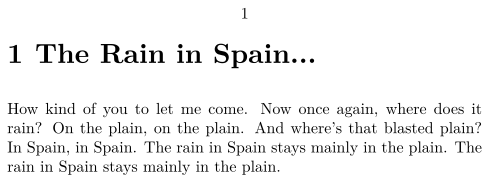
(Figure 2.1: The rain in Spain...)
In figure 2.1 we see the contents of rain.pdf. We also
see that ConTeXt has numbered the page and the chapter, and has
written the text in the font we indicated. There does not happen to be
any hyphenation of words in this case but by default ConTeXt will
hyphenate words at the end of a line in accordance with the hyphenation
rules of the language chosen, and in our case the first line of our
source file indicates (\mainlanguage[en]).
To sum up: ConTeXt has transformed the source file and generated a file where we have a document formatted according to the instructions in the source file. Any comments in that have disappeared, and as far as commands are concerned, what we have now is not their name but the results of their being executed.
The structure of our example file
In a project developed in just a single source file, the structure is
very simple and marked by the commands \starttext …
\stoptext. Everything between the first line of the file and the
command \starttext is called the preamble. The contents of
the actual document are inserted between the commands \starttext
and \stoptext. In our example the preamble includes three global
configuration commands: one to indicate the language of our document
(\mainlanguage), another to indicate the size of the pages
(\setuppapersize) which is “S5” in our case, representing
the dimensions of a computer screen, and a third command
(\setuphead) which allows us to configure what the chapter titles
look like.
The body of the document is framed between the commands \starttext
and \stoptext. These commands indicate the beginning and end points
of the processable text respectively: between them we need to include
all the text we want ConTeXt to process, along with commands that
should not affect the whole document but only parts of it. For now let
us assume that the commands \starttext and \stoptext are
obligatory in every ConTeXt document, even though further on, when
speaking about multifile projects (section 4.6) we will
see that there are some exceptions to this.
Some additional details on how to run “context”
The context command with which we began processing our first
source file earlier is really a Lua script, meaning a small
Lua program that, after performing some checks, calls on LuaTeX,
since this is what processes the source file.
We could call context with various options. The options are
introduced immediately after the command name, preceded by two dashes.
If we wish to introduce more than one option, we separate them with a
space. The help option gives us a list of all the options, with
a brief explanation of each:
$> context --help
Some of the more interesting options are as follows:
-
interface: As I already said in the introductory chapter, the ConTeXt interface has been translated into various languages. By default the interface is in English, however this option allows us to tell it to use Dutch (nl), French (fr), Italian (it), German (de) or Romanian (ro). -
purge, purgeall: Delete the auxiliary files generated during processing. -
result=Name: Indicates the name that the resulting PDF file should have. By default it will be the same as the source file being processed, with the extension .PDF. -
usemodule=list: Load the modules indicated before running ConTeXt (a module is an extension of ConTeXt that is not part of its core, and that provides some additional utility). -
useenvironment=list: Load the environment files indicated before running ConTeXt (an environment file is a file with configuration instructions). -
version: Show the ConTeXt version. -
help: print help information on program options. -
noconsole: Suppress sending messages to the screen during compilation. However, these messages are still saved in the .log file. -
nonstopmode: Carry out the compilation without stopping when there are errors. this does not mean that the error is not produced, but that when ConTeXt encounters an error, even one it can recover from, it will continue compiling till the end or until it encounters an error it cannot recover from. -
batchmode: A combination of the two previous options. It runs without interruption and omits any screen messages.
In the early steps of learning ConTeXt I do not think it is a good idea to use the last three options since when an error is produced, we will have no clue as to where it is or what has produced it. And believe me, dear readers, sooner or later you will have an error during processing.
Managing errors
While working with ConTeXt it is inevitable that sooner or later there will be some errors during processing. We can basically group the errors into these four categories:
-
Writing errors. These are produced when we make a mistake with the command name. In this case we will be sending the compiler an order it does not understand. Such as when, for example, instead of writing the command
TeXwe writeTexwith a final lower case ‘x’, given that ConTeXt differentiates between upper case and lower case and therefore sees “TeX” and “Tex” as different words; or if the functioning options of a command are placed inside square brackets instead of curly brackets, or if we try to use reserved characters as if they were normal characters, etc. -
Errors of omission. In ConTeXt there are instructions that begin a task that require that we also explicitly indicate when it ends; like the reserved character $ that enables the maths mode which continues until it is disabled, and if we forget to disable it, an error is generated when a text or instruction that makes no sense in maths mode is encountered. And the same if we begin a text block with the reserved ‘{’ character or with a
\startSomethingcommand and further on the explicit closing ‘}’ or\stopsomethingcommand is not found. -
Conception errors. This is what I call errors produced when a command is called that requires certain arguments but they are not provided, or when the syntax that calls the command is incorrect.
-
Situation errors. There are some commands that are designed to work only in certain contexts or environments, and are not recognised outside of them. This happens especially in the maths mode: some ConTeXt commands only work when writing mathematical formulas and if called in another environment they generate an error.
What do we do when context warns us, while processing, that an
error has been produced? The first thing, obviously, is to determine
what the error is. For that we need to analyse the .log file
generated during processing; although sometimes this is not necessary,
since the error is of such a kind that it has immediately forced
processing to stop, in which case the error message will be visible in
the same terminal where we have run context.
3     \setuppapersize % Paper size
4       [S5]
5
6     \setupbodyfont
7       [modern,12pt] % Main font
8
9     \setuphead      % Chapter titles in bold
10       [chapter]
11       [style=\bfc]
12
13 >>  \startext  % Begin the document
14
15# The rain in Spain
16
17     How kind of you to let me come.
18     Now once again, where does it rain?
19     On the plain, on the plain.
20     And where's that blasted plain?
21     In Spain, in Spain.
22     The rain in Spain stays mainly in the plain.
23     The rain in Spain stays mainly in the plain.

mtx-context     | fatal error: return code: 256
(Figure 2.2: Screen output in the case of a compilation error)
For example, if in our test file, rain.tex, by mistake, instead
of starttext we had written startext (with only one
‘t’), a very common mistake, when running context rain the
processing will stop and in the terminal we can see the information
shown in figure 2.2. There we can see that the lines of our
source file are numbered, and in one of them, in this case number 13,
between the number and the line of text, the compiler has added
>> to indicate that this is the line where it has found an
error. The file rain.log will give us more clues. In our example
it is not such a big file, since the source being compiled is much
reduced; in other cases it might contain an overwhelming amount of
information. But we must dive into it. If we open rain.log with
a text editor we will see that it has stored everything that ConTeXt
is doing. We need to find a line there that begins with an error warning
and for this we can use the text editor's search function. We will be
looking for “tex error”, and that will bring us to the
following lines:
tex error       > tex error on line 13 in file |
                  /home/jq/context/docs/rain.tex: ! Undefined control sequence

l.13 \startext
              % Begin the document
Note: The first line telling us about the error in the
rain.log file is very long. To make it look good, bearing in
mind the width of the page, I have split it in two. The character
‘|’ shows the point where I have split it.
If we pay attention to the three lines of the error message, we see that
in the first it tells us what line number has produced the error (line
13) and what kind of error it is: “Undefined control
sequence”, or, which is the same thing: unknown control sequence, in
other words, unknown command. The two following lines of the log file
show us line 13, split at the point that produced the error. So there is
no doubt that the error lies in startext. We read it carefully and
with luck and experience, we will realise that we have written
“startext” and not “starttext” (with a double
‘t’).
Think of the fact that computers are very good and very fast at carrying out instructions, but very slow at reading our mind, and the word “startext” is not the same as “starttext”. The program knows how to execute the latter, not the former. It does not know what to do with that.
At other times, finding the error will not be so easy. Especially when
the error consists of the fact that something has begun but where it
must end has not been indicated. At times, instead of searching for
“tex error” in the .log file, we should be looking for
an asterisk. This character at the beginning of a line in the file is
not so much a fatal error as a warning. However, warnings can be helpful
for finding the error.
And if the information in the .log file is not enough, we would
need to go through our main file, bit by bit, looking for the error. A
good strategy for this is to change the location of the stoptext
command. Remember that ConTeXt stops processing the text when it finds
this command. Therefore, if I place a stoptext more or less
halfway through the file and compile it, only that first half will be
compiled; if the error happens again then I know it is in the first half
of the source file, and if not, then it means it is in the second
half… and so on, bit by bit, changing the location of the
stoptext command, we will be able to find where the error is. Once
we have found it, we can then try to understand and correct it or, if we
cannot understand why the error has been produced, at least, by finding
where it is, we can try writing things in another way to avoid
reproducing it. This latter solution, of course, can only apply if we
are the author. If we simply typeset a text for someone else, we cannot
alter it and will have to keep investigating until we discover the
reasons for the error and its possible solution.
In practice, when a relatively long document is produced with ConTeXt it is usually compiled from time to time as the document is being drafted, so that if it throws an error we will be more or less clear about the new part since the last time we processed the file, and why it has thrown an error.